TL;DR
AI-powered productivity tools use machine-learning models, especially generative AI, to help you draft, summarize, search, organize, and act on information across familiar work apps. They can speed up repeatable, low-risk tasks, but fluent output can still be wrong, connected accounts can expose sensitive data, and review time can erase the initial savings. Pick one workflow, check the tool’s data policies, and measure time and quality after human review.
The fastest answer in your inbox can still be the one that sends you in the wrong direction. AI can draft a reply in seconds, then confidently invent a date you have to catch before it leaves your outbox.

Get business pricing on tech for your team
- Business-only prices and quantity discounts
- Tax-exempt purchasing
- Multiple users, one account, clear invoices
AI-powered productivity tools use machine-learning models, especially generative AI, to help you create, find, organize, and act on information. You’ll find them in writing assistants, meeting software, search, project management, coding tools, and office suites. Some work like a chatbot you consult; others sit inside the apps you already use.
This guide explains which everyday tasks these tools handle well, how to weigh speed against review, and what to check before connecting work files or accounts. You’ll also get a simple way to test whether a tool actually saves you time. The key is to judge the finished work, not the dazzling first response.
Start with repeatable, low-risk work such as meeting summaries, drafts, or action-item extraction.
Measure total effort, including fact-checking and editing, against your normal workflow.
Check important facts, figures, dates, citations, and commitments against the source material.
Review data retention, training use, account access, and organizational rules before uploading sensitive files.
Give tools and agents only the access they need, and review actions before they affect other people or records.
What AI Productivity Tools Can Do in a Normal Workday
AI-powered productivity tools are software features that use machine-learning models to help you create, find, organize, or act on information. Many use generative AI to draft text, summarize documents, or explain code, while others search connected files or transcribe meetings. The label covers a wide range, so two products called “AI assistants” may have very different abilities and data access.
Imagine your Tuesday starts with a meeting recording, a long customer email, and a project update due by lunch. A meeting tool might produce a transcript and suggested action items; an email assistant might draft a reply; a project tool might turn notes into assigned tasks. These features can cut down on repetitive typing, but you still need to check whether the names, dates, owners, and promises match what people actually said. That check matters because automation shifts effort rather than always removing it: time spent typing may become time spent verifying, and the balance depends on how structured the source material is.
The best-known examples fall into a few familiar groups. Writing assistants help draft and revise; meeting tools summarize conversations; search and research products find answers across information; and coding environments suggest or explain code. Office suites and project systems may combine several of these in the apps your team already uses. Being embedded can reduce copying and context switching, which makes a feature easier to adopt. It can also give the feature access to more information, so convenience and data exposure often rise together.
Think of an AI assistant as a quick kitchen helper: it can chop the vegetables or suggest a recipe, but you still taste the soup. A chatbot usually responds to your prompt; an assistant may work within your files or apps; an agent may attempt a sequence of actions. As products evolve, check each feature and permission directly. For instance, a tool that only summarizes text you paste has a different reach from one connected to your entire work drive. The distinction tells you where the main risk lies: with pasted text, you choose each input; with broad connections, access settings and organizational permissions also shape what the tool can encounter.
Products Worth Considering

Bose QuietComfort Wireless Bluetooth Noise-Cancelling Headphones, Ice Blue

Apple iPad 11-inch (A16), 128GB, Wi-Fi, Silver
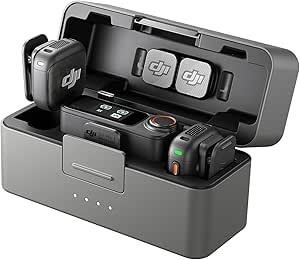
DJI Mic 3 Wireless Microphone (2 Transmitters, 1 Receiver, Charging Case)
As an affiliate, we earn on qualifying purchases.
Start With Drafts, Summaries, and Other Low-Risk Tasks
AI-powered productivity tools tend to be most useful when you give them a repeatable task, clear source material, and a simple way to review the result. Drafting, summarizing, brainstorming, translation, and extracting action items are common starting points. They reduce the blank-page slog, but they don’t remove your responsibility for the finished message or decision. These tasks are good pilots because you can compare the output with a source or familiar standard. A mistake in a draft is usually easy to catch before it reaches anyone; a mistaken decision based on that draft can be much harder to undo.
Suppose you have a 20-page internal report and need to prepare three questions for a discussion. You can ask a tool for a short summary and the points that need follow-up, then check those points against the report’s headings and figures. If it misses a caveat buried in a table, your comparison with the source catches the gap before it becomes a mistaken meeting conclusion. The summary is most valuable when it helps you navigate the report faster, not when it replaces the report as evidence. If the caveat changes the interpretation, reading the relevant passage remains part of the task.
Use the right format for the work. A simple prompt can request a first draft with a specific audience and tone; a summary request can name the sections to cover; an action-item request can ask for each task, owner, and due date separately. If the source doesn’t say who owns a task, ask the tool to mark the owner as unknown. That small instruction can keep a plausible guess from turning into a false assignment. More structure makes omissions easier to spot, but it does not guarantee correctness: a neatly formatted answer may still misread the source, so keep the original close enough to check.
Human review matters most when the cost of an error rises. A rough brainstorm has room for odd suggestions; a client commitment, financial calculation, or policy answer needs stronger checking. AI can also repeat bias or errors found in training data or supplied sources. Treat a confident tone as a style choice, not proof. If a summary will guide a decision, keep the source document close and verify the claims that could change what you do. The more consequential the decision, the less useful a general “looks fine” review becomes: check the specific evidence behind the facts that affect the outcome, and involve the responsible person where judgment or authority is required.
Measure Time Saved After You’ve Checked the Work
AI saves time only when the finished task takes less effort without falling below your quality bar. The time to generate an answer is just one part of the job; reading, checking, editing, and correcting count too. A tool can produce text in ten seconds and still leave you with more work than a careful first draft. That is why the relevant comparison is the whole workflow, not the speed of one step. If the tool shifts effort to review, its value depends on whether that review is shorter and more reliable than doing the work yourself.
For example, say a weekly project update usually takes you 30 minutes. With an assistant, the draft takes five minutes, but you spend 18 minutes fixing missing owners, checking dates, and rewriting vague claims. Your true saving is seven minutes, provided the result is as accurate and useful as your regular update. If the tool regularly overlooks the same details, even that modest saving may vanish. There is also a quality tradeoff: a shorter process is not a gain if it produces an update that prompts follow-up questions or causes a team to act on a wrong commitment.
Run a small comparison before making a tool part of your routine. Choose the same kind of task you already do, record your usual effort and quality, then track several AI-assisted attempts. Compare the complete workflow, including review, and note whether colleagues or clients need more corrections afterward. One striking success can be luck; a repeated pattern is more useful evidence. Use tasks that are comparable in difficulty, since a clean source one week and a messy one the next can make the tool look better or worse for reasons unrelated to its performance.
- Choose a repeatable task, such as meeting notes or a weekly update.
- Record your baseline: time, errors, and how much rewriting the task usually needs.
- Use the AI feature on a comparable task, giving it the source information and a clear format.
- Count review time and check the result for accuracy, omissions, and usefulness.
- Keep or drop the workflow based on the finished result across several attempts.
A spreadsheet with task, minutes, corrections, and quality notes is enough. You don’t need a sweeping claim about productivity; you need a clear answer to whether this particular use helps your day. If it saves minutes but adds errors, it may still be useful for private preparation and unsuitable for work that goes straight to a client. Keep the measure tied to the actual destination and stakes of the task.
Check Privacy Before Connecting Work Accounts
Before you upload sensitive material or connect an AI tool to workplace accounts, check what information it collects, how long it keeps that information, whether it uses data for model training, and who can access it. Those details vary by provider, product, plan, and organization settings. A familiar interface or a business label does not tell you the full data policy. Each answer affects a different part of the risk: retention determines how long information remains available, training terms affect possible later use, and access controls determine who can view it.
Imagine you want help summarizing a client proposal. Pasting the proposal into a personal tool could send names, prices, and negotiation details to a service your company hasn’t approved. A safer path may be an organization-managed tool with documented controls—or a version of the request with identifying details removed. Ask your workplace administrator if you don’t know which service is approved. Removing names can reduce exposure, but it may not be enough if prices, dates, or project details identify the client; anonymization only helps when the remaining context cannot readily point back to them.
Connected access deserves particular care. An assistant that can search your email or drive may surface information you could otherwise find manually, but it also makes permissions matter more. Review which accounts and folders it can reach, whether administrators control access, and what actions it can take. If the tool can send messages, edit records, or schedule events, use clear confirmation steps for consequential changes. A search-only connection mainly creates a discovery and disclosure concern; write access adds the possibility of changing shared records, while send access can carry an error directly to another person.
Think of access like giving someone a key: a key to one meeting room has a different reach from a master key to the office. Start with the narrowest permissions that still let you do the task, and remove access you no longer need. Policies and controls change, so read the provider’s current terms and your organization’s guidance before relying on older assumptions about data handling. The tradeoff is practical: very narrow access can make a feature less convenient or less useful, but broad access increases the impact of a mistaken query, compromised account, or unexpected action. Grant only what the workflow can justify.
Choose a Tool That Fits the Apps and People You Have
The right AI productivity tool is the one that fits your actual task, existing apps, data rules, budget, and tolerance for review. A feature-rich product can be a poor choice if your team can’t connect it to the files it needs, can’t use it in its preferred language, or keeps hitting usage limits. Start with the work you want to improve, then compare the tools that can handle it. This keeps the choice grounded in a real bottleneck: a tool that excels at drafting does little for a team whose main problem is finding reliable information across approved sources.
For instance, a small team that lives in shared documents may value a writing helper embedded in its document suite, because it reduces copying between windows. A researcher working across approved reports may care more about source links and the quality of search. A developer might want code explanations in the editor. In each case, fit and permissions matter more than a long list of features nobody uses. The tradeoff is that integration can make a tool smoother while binding the team more closely to one platform; a standalone product may be more flexible, but can require extra copying and create another place to manage access.
| What to compare | Why it matters | Example question |
|---|---|---|
| Workflow fit | Less app switching can make a useful feature easier to adopt. | Does it work where you draft, meet, or plan? |
| Data access | Connected files and accounts affect what the assistant can see. | Can you limit access to approved folders? |
| Weak output can eat up any time saved. | Can you check answers against sources? | |
| Cost and limits | Price, usage caps, and admin features vary by plan. | Does the plan cover regular use? |
| Accessibility | Language, device support, and usability affect who can use it. | Can everyone on the team use it comfortably? |
Free plans can be enough for occasional personal tasks, while paid or business plans may offer higher limits, integrations, or administrative controls. Compare the current plan details with your needs instead of assuming that payment automatically makes the output more accurate or private. Product features and pricing shift quickly; check the provider’s current information before choosing. A sensible choice balances the direct price with review effort and operational friction: a low-cost tool that demands constant correction may cost more in staff time, while a more expensive plan may not pay off if the team rarely uses its extra controls.
Give AI Agents a Smaller Job Before You Trust Bigger Ones
An AI agent can attempt a sequence of tasks across connected apps, so its permissions and confirmation steps deserve more attention than a simple drafting prompt. A chatbot may answer a question; an assistant may work with a document; an agent may try to find a meeting time, draft invitations, and add them to a calendar. The exact abilities vary by product and can change with updates. The practical distinction is that an agent can turn an interpretation into a change in another system, which raises the cost of a wrong assumption.
Consider a team coordinator trying to schedule a project review. A tool might identify open calendar slots and draft an invitation, saving tedious copying. If it sends the invite before the coordinator checks who should attend, it can create a real scheduling mess. Let the system prepare suggested actions first, then review the people, time, and message before confirming. This extra approval step may trim the speed benefit, but it limits the chance that a plausible guess becomes a commitment others must unwind.
Good automation starts with clear boundaries. Repeatable work with a predictable result—such as preparing a draft agenda from a standard template—usually gives you an easier review path than decisions with significant financial, legal, or personal impact. Keep a person involved when the action affects someone else or changes an official record. A fast mistake can spread through connected systems just as quickly as a correct update. The useful question is not simply whether the agent can perform a task, but whether you can notice and reverse an error before it causes downstream work.
Some organizations now use enterprise settings, access controls, and evaluation processes to manage these tools, but protections depend on the product and plan. Ask who can grant access, whether you can see what the agent changed, and how to reverse an action. A useful first trial might let an agent prepare a calendar draft without sending it. Once the team can review the results reliably, it can judge whether broader access makes sense. Expand one permission at a time: this makes it easier to see which added capability creates value and which merely widens the consequences of a mistake.
Frequently Asked Questions
What counts as an AI-powered productivity tool?
It’s a tool or software feature that uses machine-learning models to help with work such as drafting, summarizing, searching files, transcribing meetings, or explaining code. Some products respond to prompts, while others work inside connected apps or attempt multi-step actions.
Can AI productivity tools really save time?
They can speed up tasks such as creating a first draft or turning meeting notes into action items. Your actual saving depends on how much time you spend reviewing and correcting the output, so compare the whole task with your normal workflow.
How accurate are AI summaries and answers?
An AI summary can be fluent and still omit a qualification, misstate a figure, or repeat an error in its sources. Check claims that affect decisions against the original document, especially names, numbers, dates, and commitments.
Is it safe to upload company or client information?
That depends on the product, plan, settings, and your organization’s rules. Before uploading sensitive material, check retention, model-training use, administrator access, and which accounts or files the tool can reach.
What is the difference between a chatbot, an assistant, and an AI agent?
A chatbot typically answers prompts, an assistant may help within connected files or apps, and an agent may attempt a series of actions. Product labels vary, so inspect the actual permissions and require review before consequential actions are carried out.
Conclusion
Choose one routine task, test an AI feature against your usual approach, and count the minutes you spend checking the finished work. Keep it if the result saves time and meets your standards; change the workflow or drop the tool if correction work swallows the gain.
AI can clear a little space on your desk, but you still decide what deserves to stay there. Let it carry the first draft; keep your hand on the final answer.