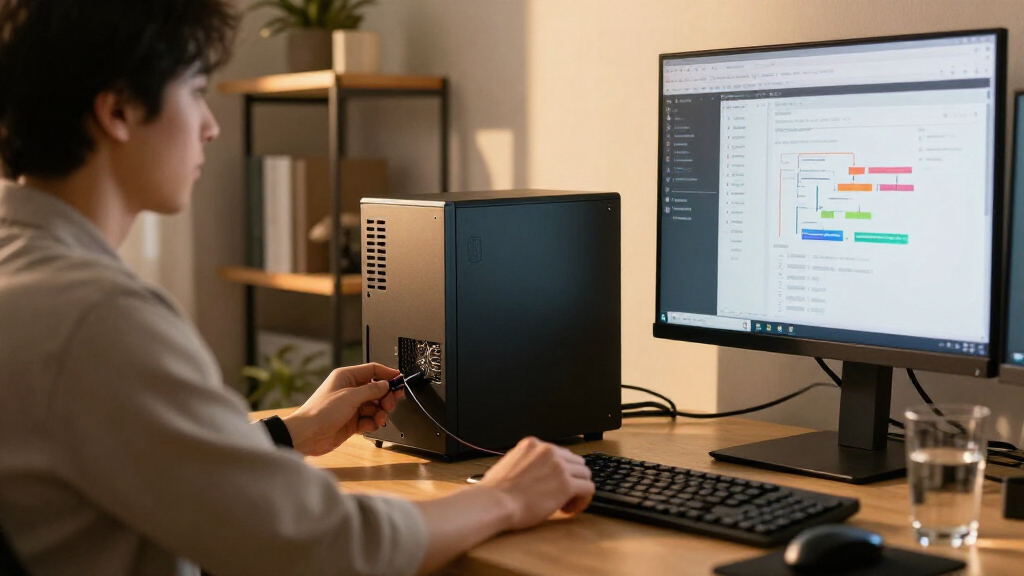

This checklist is for people setting up a practical workspace for preparing documents and other data for AI tools. It covers storage, scanning, audio and video capture, typing comfort, and connecting equipment, with each slot focused on a distinct part of the setup. Start with your actual workflow: what you need to capture, move, and connect determines which items matter most.

Get business pricing on tech for your team
- Business-only prices and quantity discounts
- Tax-exempt purchasing
- Multiple users, one account, clear invoices
Each section explains why the category can matter, what to check before buying, and where the named pick may fit. The USB microphone and webcam sections offer category advice without naming a product. The final section uses the provided Dell monitor pick under the USB-C hub heading, so check the connection details carefully before treating it as a hub recommendation.
Use the checklist to compare requirements against the devices and ports you already own. Confirm compatibility with your computer, operating system, desk, and intended applications using the manufacturers’ specifications. Prioritize fit and workflow over adding equipment for its own sake; a focused setup is easier to use and maintain.
Portable SSD
Portable storage can help when your preparation workflow involves keeping working files together or moving them between compatible devices. The named pick is the Samsung T9 Portable SSD 4TB, USB 3.2 Gen 2×2, Up to 2,000 MB/s. Its stated capacity and interface make it important to check whether your computer supports the connection standard you intend to use. Compatibility matters as much as capacity: confirm the ports and supported transfer modes on both ends.
A common buying mistake is choosing storage based only on a headline capacity or speed description. Think about the kinds of files you expect to keep locally, how you organize working and archived material, and whether your computer has a suitable connection. Check the included cable and operating-system compatibility in the product documentation, and make sure the drive fits your portability needs. Plan for your own file sizes and leave room for the way your projects grow, rather than assuming one capacity suits every workflow.
What to look for:
- Confirm your computer supports USB 3.2 Gen 2×2 if you want that interface.
- Compare the stated capacity with the files you expect to keep locally.
- Check cable and connector compatibility with your devices.
- Review operating-system support in the manufacturer documentation.
- Consider how the drive will fit into your file organization and backup routine.
Samsung T9 Portable SSD 4TB, USB 3.2 Gen 2×2, Up to 2,000 MB/s
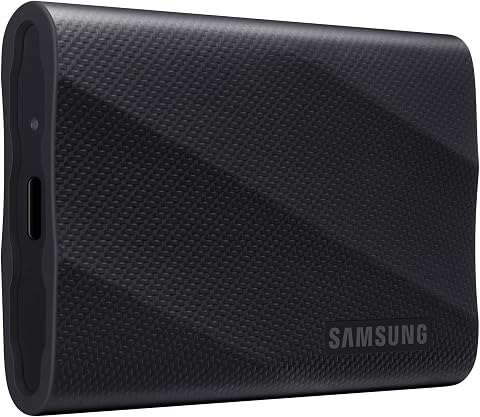
The Samsung T9 is a 4TB portable solid-state drive with read and write speeds of up to 2,000 MB/s when used with a compatible host and cable. It includes AES 256-bit hardware encryption, thermal management, and drop resistance, and works with compatible computers, consoles, tablets, and iPhone 15/16 models.
Pros:
- Up to 2,000 MB/s read and write speeds with compatible devices and connections
- Dynamic Thermal Guard helps manage heat during heavy use
- AES 256-bit hardware encryption
- Designed to withstand drops up to 9.8 ft
Cons:
- Maximum speeds require a compatible USB 3.2 Gen 2×2 host, cable, and UASP mode
- Host device compatibility may vary
Best for: People who need portable local storage for working files
Not ideal for: People whose devices lack a compatible connection
Bottom line: Choose the Samsung T9 only after confirming its interface and capacity suit your devices and file workflow.
Document Scanner
A document scanner can be useful when paper materials need to become digital files for later organization or processing. The listed pick is the Epson WorkForce ES-865 High-Speed Color Duplex Document Scanner. Its product name identifies color and duplex scanning, so consider whether those capabilities match the documents you expect to handle. Start with the documents themselves: page size, condition, and whether both sides contain information all affect what you should verify.
One common mistake is buying a scanner without checking the software and computer requirements for the intended workflow. Confirm supported operating systems, connection options, and the available scan settings in the manufacturer’s documentation. Consider where the scanner will sit, how documents will be fed, and whether your regular materials include mixed sizes or delicate pages. Check the paper handling details against your typical stack before choosing. A scanner is most useful when its setup and output fit the way you already name, review, and store digital files.
What to look for:
- Confirm operating-system and computer compatibility.
- Check supported page sizes and paper handling for your documents.
- Review color and duplex options against your scanning needs.
- Verify the connection and included software details.
- Consider placement, feed workflow, and how scan files will be organized.
Epson WorkForce ES-865 High-Speed Color Duplex Document Scanner

The Epson WorkForce ES-865 is a high-speed color document scanner designed for business use. It features duplex scanning at up to 65 ppm, a 100-page automatic document feeder, and software support for OCR and cloud storage integration, making it efficient for large scanning jobs.
Pros:
- Fast duplex scanning at up to 65 ppm
- Supports OCR for searchable and editable files
- Includes software for easy document management and cloud integration
- Handles various document types including business cards
Cons:
- Requires internet connection for cloud features
- Peak duty cycle may limit continuous large-volume scanning
- Complex setup may be challenging for some users
Best for: People digitizing color or two-sided documents
Not ideal for: People who rarely need to scan paper
Bottom line: Match the ES-865’s documented compatibility and paper handling to the documents you routinely process.
USB Microphone
A USB microphone can be relevant when your preparation workflow includes spoken notes, interviews, or recorded explanations. There is no specific product pick in this section, so use your intended recording environment to guide the choice. Begin with the room and task: a quiet desk recording and a conversation with several people can call for different pickup patterns and placement.
A common buying mistake is selecting a microphone by appearance or relying on a single feature name without checking how it connects and operates with your setup. Confirm that the connector works with your computer, that the operating system recognizes the device, and that any needed controls or monitoring options suit your workflow. Consider desk space, microphone placement, and whether you need to move it between locations. Test the full recording path—including the application you plan to use—before depending on it for important material. Review manufacturer documentation for compatibility and included accessories.
What to look for:
- Match the microphone’s connector to your computer or adapter setup.
- Check operating-system and recording-application compatibility.
- Consider pickup pattern for the number of speakers and room conditions.
- Review placement, controls, and monitoring needs.
- Check included accessories and desk space requirements.
Webcam
A webcam may be useful when your workflow includes video calls, demonstrations, or visual explanations. No specific webcam is named here, so first decide what you need the camera to capture and which applications will use it. Match the camera to the setting: desk position, available light, and framing all shape whether a particular model is appropriate.
A frequent mistake is checking image specifications while overlooking mounting, connection, and software support. Confirm that the webcam can connect to your computer and works with the operating system and applications you use. Check how it attaches to your display or stand, whether its cable reaches the intended port, and what adjustments are available for framing. Review the manufacturer’s compatibility details before relying on it for a call or recording. If you already have a suitable camera built into your device, assess whether it meets the actual task before adding another piece of equipment.
What to look for:
- Confirm the connector and operating-system support.
- Check compatibility with the applications you plan to use.
- Review mounting options and cable reach for your desk.
- Consider framing and the lighting where you will use it.
- Compare the camera’s role with any camera already built into your device.
Ergonomic Keyboard
A keyboard is a frequent point of contact in a desk workflow, so layout and fit deserve attention when typing is part of regular preparation work. The named pick is the Logitech ERGO K860 Wireless Ergonomic Split Keyboard with Wrist Rest. Its product name describes a split layout, wireless connection, and wrist rest; check the product documentation to understand its dimensions and supported devices. Comfort depends on personal fit, so consider your hand position and desk arrangement.
A common mistake is assuming an ergonomic design will suit every user without adjustment. Review the keyboard’s footprint, connection method, and compatibility with your computer before purchase. Think about how it aligns with your pointing device and whether your desk has enough room for the keyboard and wrist rest. Check the layout before switching, especially if you rely on a familiar key arrangement or move between multiple computers. Manufacturer information can confirm device support and setup details; allow time to adapt to a different shape if you have not used a split keyboard before.
What to look for:
- Check computer compatibility and wireless connection requirements.
- Measure desk space for the keyboard and wrist rest.
- Review the key layout against your typing habits.
- Consider placement relative to your pointing device.
- Confirm setup details for every computer you plan to use.
Logitech ERGO K860 Wireless Ergonomic Split Keyboard with Wrist Rest

The Logitech ERGO K860 features a curved, split keyframe and pillowed memory foam wrist rest to support a more natural typing posture. Its adjustable palm lift, scooped keys, full-size layout, and integrated number pad are designed for comfort and precise typing.
Pros:
- Curved split design and adjustable palm lift support a more natural typing posture.
- Pillowed memory foam wrist rest provides additional wrist support.
- Bluetooth and USB receiver connectivity support flexible device connections.
- Scooped keys, full-size layout, and integrated number pad support comfortable, precise typing.
Cons:
- The ergonomic split layout may require an adjustment period.
- Requires two batteries.
Best for: People seeking a split keyboard with wrist rest
Not ideal for: People who prefer a compact or familiar layout
Bottom line: Check the K860’s fit, footprint, and device support before changing your typing setup.
USB-C Hub
This slot’s supplied pick is the Dell 34 Monitor S3425DW, WQHD VA, 120Hz, FreeSync Premium, Eye Comfort. The product name describes a monitor, not a USB-C hub, so verify its ports and connection features directly before relying on it to connect peripherals. Confirm the category fit first: a display and a hub serve different connection needs, even when a monitor may include ports.
A common buying mistake is assuming that a monitor’s connector or USB ports provide the same functions as a dedicated hub. Check the manufacturer’s specifications for USB-C data, power delivery, display input, and downstream ports, as applicable to your computer and accessories. Also confirm that your computer can drive the monitor at the resolution and refresh rate you intend to use. Map every device connection before buying, including what needs charging, data transfer, or display output. If you need a hub, select one whose documented ports and capabilities match those needs; assess the named Dell monitor separately as a display.
What to look for:
- Verify whether the monitor has the specific USB-C and hub functions you need.
- Check port types and supported data or power features in the specifications.
- Confirm computer compatibility with the display connection and output modes.
- List peripherals and identify their required ports before selecting a hub.
- Treat the Dell monitor’s display role separately from hub requirements.
Dell 34 Monitor S3425DW, WQHD VA, 120Hz, FreeSync Premium, Eye Comfort
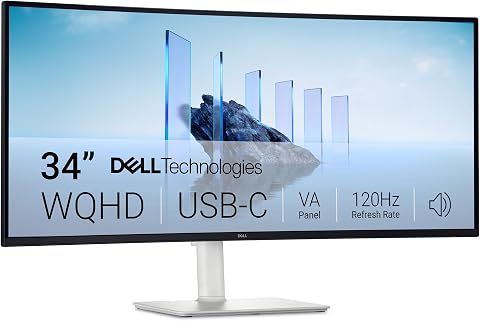
The Dell S3425DW is a 34-inch curved monitor featuring a WQHD resolution of 3440×1440, a 120Hz refresh rate, and AMD FreeSync Premium for smooth visuals. It offers vivid colors with 99% sRGB and 95% DCI-P3 coverage, along with eye comfort technology and easy USB-C connectivity for a seamless experience.
Pros:
- Vivid and true-to-life colors with high color coverage
- Smooth visuals with 120Hz refresh rate and FreeSync Premium
- Eye comfort features reduce blue light emissions
- Convenient USB-C connectivity with power delivery
Cons:
- Large size may not fit smaller desks
- Limited stand adjustability details
- No built-in speakers mentioned
Best for: People who also need a large monitor
Not ideal for: People seeking a confirmed dedicated USB-C hub
Bottom line: The Dell S3425DW is identified as a monitor; verify its ports and choose a hub based on documented requirements.
Build in a practical order: first identify the connection and storage needs of your existing computer, then prioritize the category that removes the biggest workflow obstacle. For paper-heavy work, assess the scanner; for moving files, check portable storage; then consider audio, video, typing, and peripheral connections according to actual use. Confirm compatibility before purchasing, especially where interface or hub capabilities are central.
You do not need every category to prepare data effectively. Begin with the tasks you perform most often, check fit and setup details, and add equipment as a clear need emerges. A well-matched setup can stay simple: choose tools that work with your devices and make your routine easier to carry out.
Black Friday Picks

Sonos Era 300 Wireless Smart Speaker with Dolby Atmos, Black
As an affiliate, we earn on qualifying purchases.