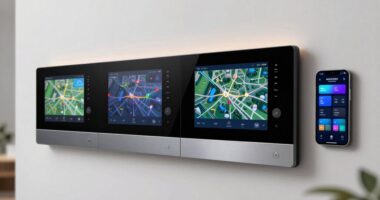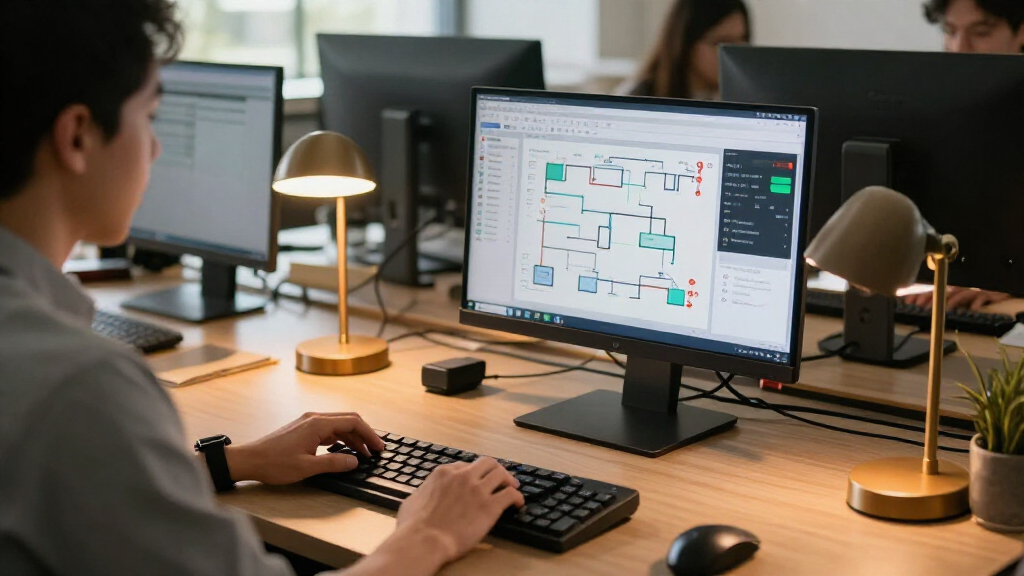

This checklist is for anyone setting up an AI automation control room, from a compact desk for personal projects to a workspace that needs room for connected equipment. The picks focus on practical roles: a small computer, clear audio, a visible camera setup, shared storage, device control, and backup power. Start with your actual workflow so each item supports a task you expect to do.

Get business pricing on tech for your team
- Business-only prices and quantity discounts
- Tax-exempt purchasing
- Multiple users, one account, clear invoices
The sections follow those roles in order. Some are advice-only slots with no named product, while others include a specific pick to consider. That distinction matters: use the guidance to define what the setup needs before comparing products or committing to a particular arrangement.
Use this as a fit and compatibility checklist, not a one-size-fits-all equipment list. Check desk space, ports, network connections, the devices you plan to manage, and the power needs of your equipment. Choose the pieces that solve a real constraint first, then build around them.
Mini PC
A mini PC can provide a dedicated place to run automation tools and keep a control-room workspace organized. Before choosing one, list the applications and connected devices you expect to use, then check their operating-system, processor, memory, storage, and connection requirements. Match the computer to the workload instead of choosing by size alone.
A common mistake is overlooking the connections the setup needs. Count the displays, network connections, peripherals, and any other devices you expect to attach, then confirm the computer can support them together. Also measure the intended placement and leave room for access to ports and airflow. Check physical fit and ports against the actual desk or mounting location.
There is no named product for this slot, so treat it as a requirements-first decision. Consider whether the control room needs to run continuously, whether it will be managed locally or remotely, and how much room you want for future tools. Write down the minimum requirements before comparing candidates, and verify compatibility with the software and equipment already in your setup.
What to look for:
- Processor, memory, and storage suited to the software you plan to run
- Operating-system compatibility with your automation tools
- Enough ports for displays and planned peripherals
- Network connection options that fit the workspace
- A size and placement that allow access and airflow
USB microphone
A USB microphone can make spoken communication and recordings part of an automation workspace, whether you are joining calls, dictating, or capturing audio. The named pick is the RØDE NT-USB+ Professional USB Condenser Microphone. Before selecting it, identify how you will use a microphone and which computer or other device it needs to connect to.
One common buying mistake is focusing on the microphone while overlooking the rest of the audio setup. Consider where it will sit, how close you will be when speaking, and whether nearby equipment or desk activity could interfere with use. Check the device’s connection requirements and whether your computer recognizes it in the applications you plan to use. Verify the connection path before setting up the workspace.
Fit is about more than the microphone’s footprint: check that the placement works with your monitor, keyboard, and speaking position. If you expect to move it or share the desk, account for cable routing and storage when it is not in use. The product name identifies this as a USB condenser microphone; confirm its current setup requirements and compatibility for your intended devices before purchase.
What to look for:
- USB connection compatibility with your computer or device
- A placement that suits your speaking position
- Enough desk space alongside other equipment
- Cable routing that does not obstruct daily work
- Compatibility with the audio applications you use
RØDE NT-USB+ Professional USB Condenser Microphone

The RØDE NT-USB+ is a professional-grade USB condenser microphone featuring a studio-quality capsule, ultra-low-noise circuitry, and versatile controls. It offers high-resolution audio, zero-latency monitoring, and includes a pop filter and desktop stand, making it ideal for podcasting, music recording, and streaming.
Pros:
- High-quality studio-grade sound with low noise
- Versatile controls and audio processing features
- Includes pop filter and desktop stand for convenience
- Compatible with computers, tablets, and smartphones
Cons:
- Requires USB-C port, may need adapters for some devices
- Premium features may be complex for beginners
Best for: A workspace that needs a USB microphone
Not ideal for: A setup without a compatible USB device or suitable placement
Bottom line: Confirm device compatibility and desk placement before adding the RØDE NT-USB+ to your setup.
Webcam
A webcam gives a control-room setup a camera option for calls, demonstrations, or other video tasks. No specific product is named for this slot, so start with where the camera will be used and what it needs to show. Frame the intended view before comparing models: the display, desk, room, and user position all affect placement.
A frequent mistake is choosing a webcam without checking how it attaches or connects. Determine whether it will sit on a display, stand on the desk, or use another mounting arrangement, and make sure the location leaves the screen usable. Then check the connection type and compatibility with the computer and video applications in your workflow. Test the physical fit with the existing monitor and workspace layout in mind.
Consider lighting and camera angle at the time you expect to use it. A position that works in one room arrangement may not work after moving a monitor or adding other equipment. Decide whether you need the camera for occasional calls or regular video work, and use that context to guide setup features. Verify the product’s specifications and compatibility directly before choosing a model.
What to look for:
- Mounting method that fits your display or desk
- Connection compatibility with the control-room computer
- A camera angle that frames the intended view
- Placement that keeps the display and desk usable
- Compatibility with the video applications you use
Network attached storage
Network attached storage can give a control room a shared place for files, project materials, or other data, depending on how the system is configured. The named pick is the UGREEN NASync DXP4800 Pro 4-Bay Network Attached Storage. Start by identifying who or what needs access, which devices must connect, and how you expect to organize the data.
A common mistake is treating the storage device as the whole solution. Check the network connection and compatibility with the computers and applications that will use it. Also plan where the unit will sit, how it will connect to the network, and how you will manage access. Map the network path from each intended user or device before setup.
The four-bay description makes drive and capacity planning especially relevant: determine what storage configuration you need and confirm supported drive types and setup requirements with the manufacturer. Consider how much room the unit needs and whether its location works for your network cabling and workspace. Do not assume that a particular drive arrangement, backup method, or software feature is included; verify those details against the current product documentation.
What to look for:
- Network compatibility with your existing router and devices
- Supported drive types and configuration requirements
- A storage plan suited to the files and users involved
- A location with workable network cabling and access
- Access and management compatibility for your workflow
UGREEN NASync DXP4800 Pro 4-Bay Network Attached Storage

This 4-bay NAS is engineered for IT professionals and power users, featuring an Intel Core i3-1315U processor and 8GB of DDR5 RAM for smooth virtualization and Docker workflows. It supports up to 144TB of total storage with dual M.2 PCIe 4.0 slots and offers high-speed connectivity via 10GbE and 2.5GbE ports.
Pros:
- High-performance Intel Core i3 processor with expandable DDR5 RAM supports heavy multitasking and virtualization.
- Blazing-fast network speeds with dual ports (10GbE + 2.5GbE) reaching up to 1.25GB/s.
- Massive storage flexibility with support for up to 144TB and dual M.2 SSD cache slots.
- Robust security features including local AI processing, Data Vault encryption, and TV SD certification.
Cons:
- Hard drive rotational speed is limited to 7200 RPM, which may be slower than enterprise-grade 10k/15k RPM drives.
- Requires separate purchase of hard drives as none are included.
Best for: Workflows that need network attached storage
Not ideal for: Setups without a network or a clear storage plan
Bottom line: Confirm network, drive, and access requirements before configuring the UGREEN NASync DXP4800 Pro.
Smart plug
A smart plug can add control of a compatible connected device to an automation setup. This checklist’s pick is the Kasa Smart Plug Mini EP10P4, 4-Pack. Before assigning plugs to equipment, identify which devices you want to control and check that each is suitable for use with the plug.
A frequent mistake is assuming every device can be controlled the same way. Review the device’s power requirements and operating instructions, then check the smart plug’s supported load and the manufacturer’s guidance. Confirm that the plug fits the outlet without blocking nearby sockets, and consider whether its location provides the connectivity required by the control method. Check the load and outlet fit for each intended device.
Think through setup and routine use, too. Confirm compatibility with your network and the app or automation system you intend to use, and decide whether you need control for all four plugs at once or in different locations. The product name specifies a four-pack; it does not establish compatibility with every device or automation platform. Verify current requirements before connecting equipment, and keep any essential device’s own operating guidance in view.
What to look for:
- Power and load compatibility with each intended device
- Outlet fit that leaves nearby sockets accessible
- Network and app compatibility for your setup
- A plan for where each plug in the four-pack will be used
- Manufacturer guidance for the connected equipment
Kasa Smart Plug Mini EP10P4, 4-Pack
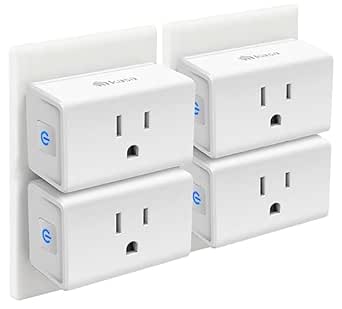
Four compact Wi-Fi smart plugs let you control lights and small appliances by voice or through the Kasa app. They connect to 2.4 GHz Wi-Fi without a hub and support schedules, timers, and Away Mode.
Pros:
- Compact design leaves the second outlet accessible
- Supports voice control and app-based control from anywhere
- Schedules, timers, and Away Mode are included
- UL certified
Cons:
- Requires a 2.4 GHz Wi-Fi connection
- Kasa app is required for setup and control
Best for: A setup with several suitable devices to control
Not ideal for: Equipment that is incompatible with smart-plug control
Bottom line: Check each device’s power needs, outlet fit, and control compatibility before use.
Uninterruptible power supply
A UPS can provide a power-backup component for equipment in an automation control room. The named pick is the GoldenMate 1500VA/1200W Lithium UPS Battery Backup & Surge Protector. Start by listing the devices you plan to connect and checking their power requirements against the UPS specifications.
A common mistake is choosing based on a headline capacity without checking the combined load or the connections available. Confirm how many devices need power, which outlets they use, and whether the UPS provides the connection types your equipment requires. Match the total load and outlet needs before plugging anything in.
Placement matters as well: measure the available space and check access to the wall outlet and connected equipment. Review the manufacturer’s instructions for installation, battery care, and any limits on use. The product name identifies a lithium UPS with a 1500VA/1200W rating, but it does not establish runtime for a particular combination of devices. Confirm the product documentation and calculate your expected load before relying on it for your setup.
What to look for:
- Combined equipment load within the UPS rating
- Enough outlets and suitable connections for planned devices
- A placement near the equipment and wall outlet
- Manufacturer guidance for battery use and care
- Runtime information applicable to your expected load
GoldenMate 1500VA/1200W Lithium UPS Battery Backup & Surge Protector, Gray

The GoldenMate UPS uses a LiFePO4 battery pack (51.2 V, 5.8 Ah) that delivers over 10 years of life and more than 3,000 charge cycles, eliminating the need for regular replacements. It provides 1500 VA/1200 W pure sine wave output with Automatic Voltage Regulation, eight widely spaced NEMA outlets, and front‑panel USB‑C/A charging ports, all monitored by an LCD display.
Pros:
- LiFePO4 battery offers >10‑year lifespan and >3,000 charge cycles
- 1500 VA/1200 W pure sine wave output with AVR protects sensitive equipment
- Eight widely spaced outlets plus USB‑C/A charging ports for versatile connectivity
- LCD display provides real‑time monitoring and mute/LCD off control
Cons:
- Heavy at 15 kg and relatively large footprint
- Only supports 90–140 V AC input; generator power may not be recognized
Best for: A setup that needs UPS backup for connected equipment
Not ideal for: Loads that exceed its rating or need unverified runtime
Bottom line: Check your equipment’s total load, outlet needs, and expected runtime before connecting it.
Build in a practical order: first identify the computer and network requirements, then the storage and devices that will connect to them. Add audio and video equipment based on how you communicate, and consider the smart plug and UPS once you know which devices they must support. Prioritize compatibility and fit so each purchase has a clear role.
You do not need to fill every slot at once. Start with the part of the control room that addresses your most immediate need, verify the relevant specifications, and expand as your workflow becomes clearer. A well-matched setup is easier to place, connect, and use day to day.