
🔍 Read the full analysis: The 6 Best Thunderbolt Docks For Expanding Your Workspace on ThorstenMeyerAI.com

Get business pricing on tech for your team
- Business-only prices and quantity discounts
- Tax-exempt purchasing
- Multiple users, one account, clear invoices
TL;DR
A buying guide from ThorstenMeyerAI.com ranks six Thunderbolt docks, led by Anker’s Prime 14-in-1 Thunderbolt 5 Dock, and compares five Thunderbolt 4 options. The guide stresses that host-computer, operating-system, display and power limits can matter more than a dock’s advertised port count.
ThorstenMeyerAI.com has ranked six Thunderbolt docks for expanding a computer workspace, placing Anker’s Prime 14-in-1 Thunderbolt 5 Dock first for buyers seeking newer-generation bandwidth and a broad set of connections, as detailed in the original analysis. The list also compares five Thunderbolt 4 models, with the guide emphasizing that laptop compatibility, display limits and charging requirements should shape a purchase more than port count alone.
The six picks are the Anker Prime 14-in-1 Thunderbolt 5 Dock, Plugable TBT-UDM, Dell Pro SD25TB4, Plugable 100W Thunderbolt 4 Dock, Dell WD19TB and Dell WD19TBS, alongside other top-rated Thunderbolt docks. The source ranks Anker first overall, describing its Thunderbolt 5 generation and broad connection set as a fit for buyers who want additional bandwidth headroom. It does not provide independent benchmark results or a complete port-by-port comparison in the supplied material.
The Thunderbolt dock options address different needs. The guide presents the Plugable TBT-UDM as a cross-platform choice and the Dell Pro SD25TB4 as a current Dell-oriented option. A second Plugable model is positioned around 100W charging and dual-monitor use. The Dell WD19TB and WD19TBS are related models, but the source distinguishes their configurations, citing a 180W adapter for the WD19TB and 130W Power Delivery for the WD19TBS.
The ranking is based on generation, host compatibility, charging, display support, connection variety and how clearly each product fits a buyer’s setup. The source places the Plugable TBT-UDM and Dell Pro SD25TB4 behind Anker, with the WD19 models lower in the list. It says the second Plugable model has a distinct role for people prioritizing charging and two displays; the supplied excerpt does not identify its exact model name.
The 6 picks
- 1
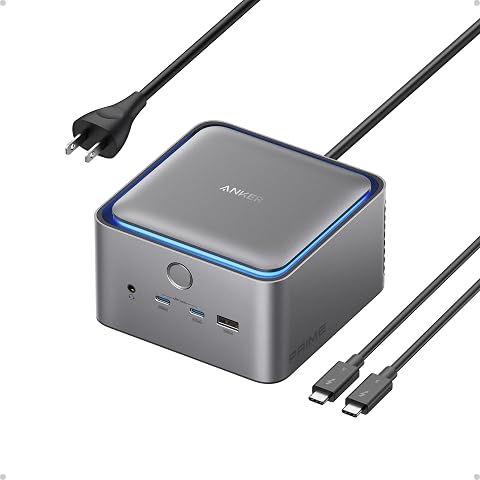 Anker Prime 14-in-1 Thunderbolt 5 Docking StationView on Amazon →
- 2
 Dell Pro Thunderbolt 4 Smart Dock SD25TB4 – USB-C Station 130W, 4 Displays 4K…View on Amazon →
- 3
 Plugable Thunderbolt 4 Dock with 100W Charging, Dual MonitorView on Amazon →
- 4
 Plugable Thunderbolt 4 Dock (TBT-UDM) for Mac and WindowsView on Amazon →
- 5
 Dell WD19TB Thunderbolt Docking Station with 180W AC AdapterView on Amazon →
- 6
 Dell Thunderbolt Dock WD19TBS with 130W Power DeliveryView on Amazon →
Match the Dock to Your Laptop
A dock can consolidate monitor, storage, network and accessory connections, but buying the newest or most feature-rich model does not guarantee those features will work with a particular laptop. The computer is part of the compatibility equation: its port standard, operating system and display capabilities can limit what the dock can deliver.
That makes the guide’s distinction between Thunderbolt 5 and Thunderbolt 4 relevant to cost and practical value. A Thunderbolt 5 dock may offer more headroom, but a Thunderbolt 4 computer may not benefit from those newer capabilities. Likewise, advertised charging output is not a universal promise that every laptop will charge at its preferred rate, especially under heavy workloads. Checking specifications before buying can help prevent a mismatch that leaves a monitor, peripheral or power setup short of expectations.
Products Worth Considering

Sonos Era 100 Wireless Smart Speaker with Alexa, Black

LG UltraGear 32-inch QHD Curved Gaming Monitor, 180Hz, 1ms, AMD FreeSync

Samsung 27-Inch Odyssey OLED G6 QHD Gaming Monitor (G61SH)
As an affiliate, we earn on qualifying purchases.
Six Models, Different Priorities
The comparison separates the products into one Thunderbolt 5 model and five Thunderbolt 4 models. Rather than treating the list as a simple count of ports, the source evaluates how each dock fits a specific use case: newer bandwidth, cross-platform use, a Dell setup, higher charging needs or a two-monitor arrangement.
Its buying guidance recommends checking the laptop’s exact port specification, since a USB-C connector’s shape alone does not establish that it supports Thunderbolt. For displays, buyers are advised to check each monitor’s resolution, refresh rate and input alongside the computer’s supported display configuration and the dock’s connection types. The source also says to compare a laptop’s power requirement with the dock’s charging output, and to distinguish the dock’s adapter rating from the power delivered to the computer.
“A dock’s port count alone does not guarantee that every screen or peripheral will work as expected.”
— ThorstenMeyerAI.com buying guide
Compatibility Depends on the Host
The supplied source does not give a publication date, live prices, retailer availability or a full specification table for all six products. It also does not identify the exact model name of the second Plugable dock, so that pick cannot be independently distinguished from the TBT-UDM based on the provided material.
Specific display outcomes remain setup-dependent. The guide does not state a single resolution-and-refresh-rate result that applies to every laptop, operating system and monitor combination. Buyers should verify the exact configuration with the computer and dock specifications. The source’s rankings are editorial recommendations, not reported laboratory test results; no test methodology, benchmark measurements or independent performance data are included in the supplied excerpt.
Check Specs Before Buying
The guide’s next step for shoppers is to list the devices that will remain connected, then verify the laptop’s Thunderbolt standard, operating-system support, display limits and charging needs against the chosen dock. For a dual-monitor setup, buyers should confirm the supported mode for their exact computer and screens, including resolution, refresh rate and connection type. They should also check whether the dock can supply the power their laptop requires during normal use.
No product update, test release or future review date is specified in the source. Prices and availability may change, so shoppers should confirm current retailer listings and manufacturer specifications before making a purchase.
Key Questions
Which dock does the guide rank first?
It ranks the Anker Prime 14-in-1 Thunderbolt 5 Dock first for buyers seeking newer-generation bandwidth and a broad connection set.
Is a Thunderbolt 5 dock the right choice for every laptop?
No. The laptop must support the relevant connection to benefit from Thunderbolt 5 features. The guide says buyers with Thunderbolt 4 computers may find a Thunderbolt 4 dock sufficient for their needs.
Does a dock’s advertised display support guarantee two monitors will work?
No. The result can depend on the laptop’s display limits, operating system, monitor specifications and connection types. Check the exact dual-display configuration for the computer before buying.
What is the difference between the two Dell WD19 models in the guide?
The source distinguishes the WD19TB’s listed 180W adapter from the WD19TBS’s 130W Power Delivery. Buyers should check the laptop’s power needs and the full model specifications; those figures describe different parts of the power setup.
Source: ThorstenMeyerAI.com